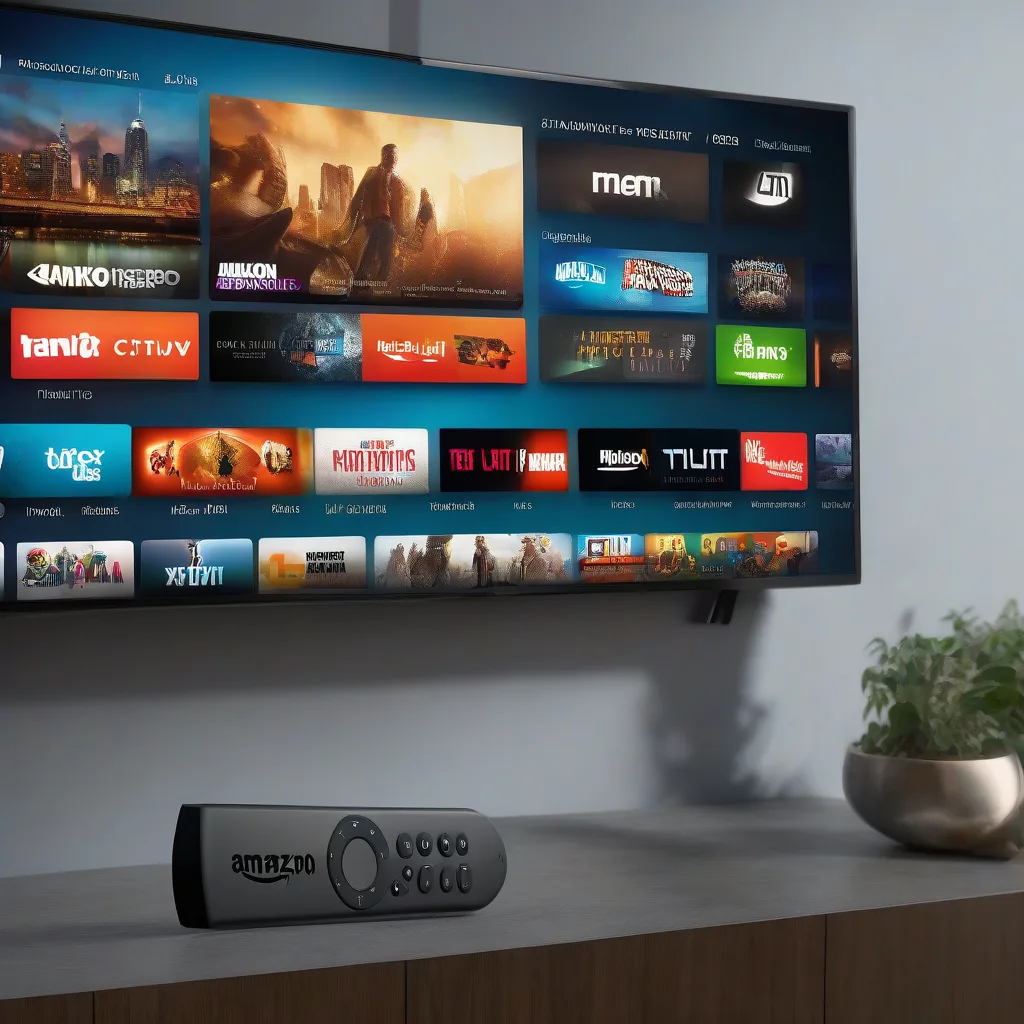
Why Choose ramix iptv on Firestick 4K Max
ramix iptv offers a curated library of live TV, movies, and on‑demand series in true 4K resolution. When paired with the Amazon Firestick 4K Max, you get a seamless Android‑based interface, fast Wi‑Fi connectivity, and support for HDR content. The combination delivers a cable‑free experience without sacrificing picture quality.
What You Need Before You Start
- Amazon Firestick 4K Max (firmware up to date)
- Stable internet connection – minimum 25 Mbps for smooth 4K streaming
- ramix iptv subscription credentials (username, password, and M3U URL)
- A spare USB‑OTG drive or micro‑SD card (optional, for storing the APK)
- Basic remote control navigation skills
Step‑by‑Step Installation Guide
- Prepare the Firestick
Plug the Firestick into an HDMI port on your 4K TV and power it on. From the home screen, navigate to Settings > My Fire TV > About > Get Device Info and note the serial number in case you need support later.
- Enable Apps from Unknown Sources
Go to Settings > My Fire TV > Developer Options and turn on both Apps from Unknown Sources and ADB Debugging. This allows you to install third‑party APK files such as the ramix iptv player.
- Download the ramix iptv APK
On a computer or mobile device, open the official download page at ramixiptv4k.store/download. Click the
Download APKbutton and save the file. - Transfer the APK to the Firestick
You have two options:
- Using a USB‑OTG drive: Connect the drive to the Firestick’s micro‑USB port with an OTG adapter, then use a file manager app (e.g., ES File Explorer) to locate the APK and tap to install.
- Using the Downloader app: Install the Downloader app from the Amazon Appstore. Open Downloader, paste the direct APK URL, and press Go. When the download finishes, tap Install.
- Launch ramix iptv
After installation, open the ramix iptv app from Your Apps & Channels. You will be prompted for your subscription credentials. Enter the username, password, and the M3U URL provided in your welcome email.
- Configure 4K Playback Settings
Inside the app, go to Settings > Video. Set Resolution to Auto or manually select 3840×2160 (4K). Enable HDR if your TV supports it. Save the changes.
- Start Watching
Return to the main guide, browse the 4K channel list, and select any channel. You should see a crisp 4K picture with smooth motion. If the stream buffers, pause for a few seconds to allow buffering, then resume.
How to Optimize Your 4K Streaming Experience
Even with a fast connection, occasional hiccups can occur. Follow these quick tips:
- Place the Firestick close to your Wi‑Fi router or use a dual‑band 5 GHz network.
- Disable other bandwidth‑heavy devices while streaming premium 4K content.
- In the Firestick settings, enable HDMI CEC to allow the TV to control power and volume automatically.
- Clear the app cache periodically via Settings > Applications > Manage Installed Applications > ramix iptv > Clear Cache.
Troubleshooting Common Issues
- No video or black screen
Make sure the TV input is set to the correct HDMI port. Verify that the app’s video resolution matches your TV’s capabilities. If the problem persists, go to Settings > Video in the app and select a lower resolution (e.g., 1080p) to test the signal path.
- Buffering or frequent pauses
Check your internet speed with a speed‑test app. If it falls below 25 Mbps, consider switching to a wired Ethernet adapter for the Firestick. Also, close background apps on the Firestick via Settings > Applications > Manage Installed Applications > Running Services.
- Authentication failed
Double‑check the username, password, and M3U URL. Remember that the URL is case‑sensitive. If you recently renewed your subscription, wait up to 10 minutes for the server to sync.
- App crashes on launch
Uninstall the app, clear the Firestick cache (Settings > My Fire TV > About > Reset to Factory Defaults – note this will erase all installed apps), then reinstall using the latest APK from the official site.
- Audio out of sync
Navigate to Settings > Audio on the Firestick and set Dolby Digital Plus to Off. In the ramix iptv app, enable Audio Sync and adjust the delay until the picture and sound match.
FAQ
- Can I use ramix iptv on a Firestick 4K Max without a VPN?
- Yes. The service works directly over your internet connection. However, a reputable VPN can protect your privacy and bypass geo‑restrictions if needed.
- Do I need a separate 4K TV to view 4K streams?
- A true 4K TV is required to display the full resolution. On a 1080p screen the stream will downscale automatically.
- How many devices can I stream simultaneously?
- ramix iptv allows up to three concurrent streams per subscription. Exceeding this limit will result in a temporary lockout.
- Is the Firestick 4K Max compatible with HDR10+?
- If your TV supports HDR10+, enable it in the TV’s picture settings. The ramix iptv app will pass HDR metadata when available.
- What should I do if a specific channel is black or audio‑only?
- Refresh the channel list in the app’s settings. If the issue persists, the source feed may be offline; check the ramix iptv status page for updates.
By following this guide, you’ll have a fully functional 4K IPTV setup on your Firestick 4K Max, ready for binge‑watching, sports, and live events in stunning detail.